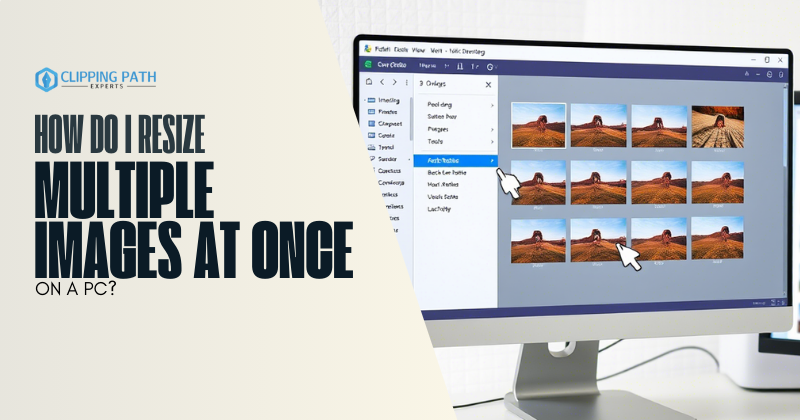
If you’ve ever faced a folder full of oversized images and thought, “How do I resize multiple images at once on a PC without losing my sanity?”—you’re in the right place. This isn’t just another tutorial repeating the same old tips. Instead, we’ll explore unconventional methods, hidden Windows tools, and smart workflow hacks to resize Bulk images quickly, whether you’re a casual user or a productivity geek. Say goodbye to one-by-one editing and hello to streamlined efficiency.
Why Batch Resizing Matters and How do I resize multiple images at once on a PC?
Resizing images individually is like hand-washing dishes when you own a dishwasher: inefficient and unnecessary. Batch resizing saves time, ensures consistency, and optimizes storage—especially for portfolios, social media posts, or client projects. But pitfalls await: distorted aspect ratios, pixelated results, or accidentally resizing originals. We’ll tackle these issues head-on.
Method 1: Built-In Tools You Didn’t Know Existed
A. Windows Photos App: The Underrated Hero
Most PCs have the Photos app preinstalled, but few realize it can batch-resize:
- Select images in File Explorer (hold Ctrl while clicking).
- Right-click > Open With > Photos.
- Click the “…” menu > Resize > Choose a preset (e.g., 1920×1080) or custom dimensions.
- Select a save location. Done!
Pros: No extra downloads.
Cons: Limited customization.
B. PowerToys Image Resizer: For Power Users
Microsoft’s free PowerToys suite includes an Image Resizer that adds a right-click menu:
- Install PowerToys and enable “Image Resizer” in settings.
- Select images > Right-click > Resize pictures.
- Choose presets (Small, Medium, Large) or create custom sizes.
- Optional: Replace originals or save as new files.
Pro Tip: Enable “Maintain aspect ratio” to avoid squishing.
Method 2: Third-Party Software (Free & Paid)
A. IrfanView: The Lightweight Legend
This free tool has a cult following for its batch-editing prowess:
- Open IrfanView > File > Batch Conversion/Rename.
- Add your images.
- Under Advanced Options, check “Use advanced options” > Set resize parameters.
- Specify width/height (e.g., 50% scaling or 800px width).
- Run the batch!
Bonus: Add watermarking or format conversion in the same step.
B. XnConvert: For Pixel-Perfect Control
A cross-platform gem (free for personal use) with granular settings:
- Drag and drop images into XnConvert.
- Under Actions, click Add > Resize.
- Set dimensions, interpolation method (for quality), and aspect ratio locks.
- Choose output format (JPEG, PNG, etc.) and folder.
- Hit Convert—watch hundreds of images resize in seconds.
Hidden Feature: Use variables like %width% to auto-fill values based on original sizes.
The Secret Weapon: File Explorer’s “Preview Pane” Hack
Before resizing, use Windows’ Preview Pane to triage images:
- In File Explorer, go to the View tab > Preview Pane.
- Click an image to preview it without opening.
- Sort or delete unwanted files first—saving time in later steps.
Preserving Quality: Avoiding the Blurry Mess
Resizing down usually maintains quality, but enlarging images can cause pixelation. Here’s how to mitigate it:
- Use AI Tools: Software like GIMP (free) or Topaz Gigapixel (paid) upscale images using AI for sharper results.
- Stick to Ratios: Resize proportionally. For example, a 4000×3000 image resized to 2000×1500 keeps its 4:3 ratio.
Batch Renaming + Resizing: A Double Win
Why stop at resizing? Rename files during the process for better organization:
- In IrfanView’s Batch tool, use the Rename tab to apply patterns like Vacation_001.jpg, Vacation_002.jpg, etc.
- In XnConvert, use the Output tab to add prefixes or suffixes (e.g., _resized).
Troubleshooting Common Headaches
“My Images Are Still Huge After Resizing!”
- Check the output format. PNGs are larger than JPEGs. Convert to JPEG for smaller files.
- Enable compression in your resizing tool (e.g., IrfanView’s “JPEG Quality” slider).
“The Aspect Ratio Looks Weird!”
- Most tools have a “Lock aspect ratio” checkbox. Enable it!
- If forced to custom sizes, calculate proportions first (e.g., new height = (original height/original width) * new width).
FAQs on How Do I Resize Multiple Images at Once on a PC?
Can I resize images without installing software?
Yes! Use the Windows Photos app or PowerToys (both free).
What’s the best format for resized images?
JPEG for photos (small size), PNG for transparency/logos.
How do I resize images for email?
A: Aim for 800-1200px width and 72 DPI. Use tools with built-in compression (e.g., XnConvert).
Can I resize SVG or HEIC files this way?
Yes, but you’ll need specialized tools like XnConvert (supports 500+ formats).
Final Verdict: The Best Method for You
- Casual Users: Stick with Windows Photos or PowerToys.
- Photographers/Designers: Use XnConvert or IrfanView for precision.
- Tech Enthusiasts: Embrace ImageMagick or PowerShell for automation.
Conclusion
Now that you’ve unlocked the secrets to batch resizing, you’re equipped to tackle any image-heavy project with confidence. Whether you’re prepping a presentation, organizing vacation pics, or optimizing a website, these methods will save hours of clicks. Remember: the right tool depends on your needs, so experiment and find your workflow sweet spot.
Next time someone asks, “How do I resize multiple images at once on a PC?”—you’ll have the ultimate answer.